Terminal Themes & Configuration
This page serves as a visual reference for terminal customization, including:
- Oh My Posh themes I have tested
- Windows Terminal appearance settings
- PowerShell profile configuration and relocation
🎨 Oh My Posh Themes
Blue Owl
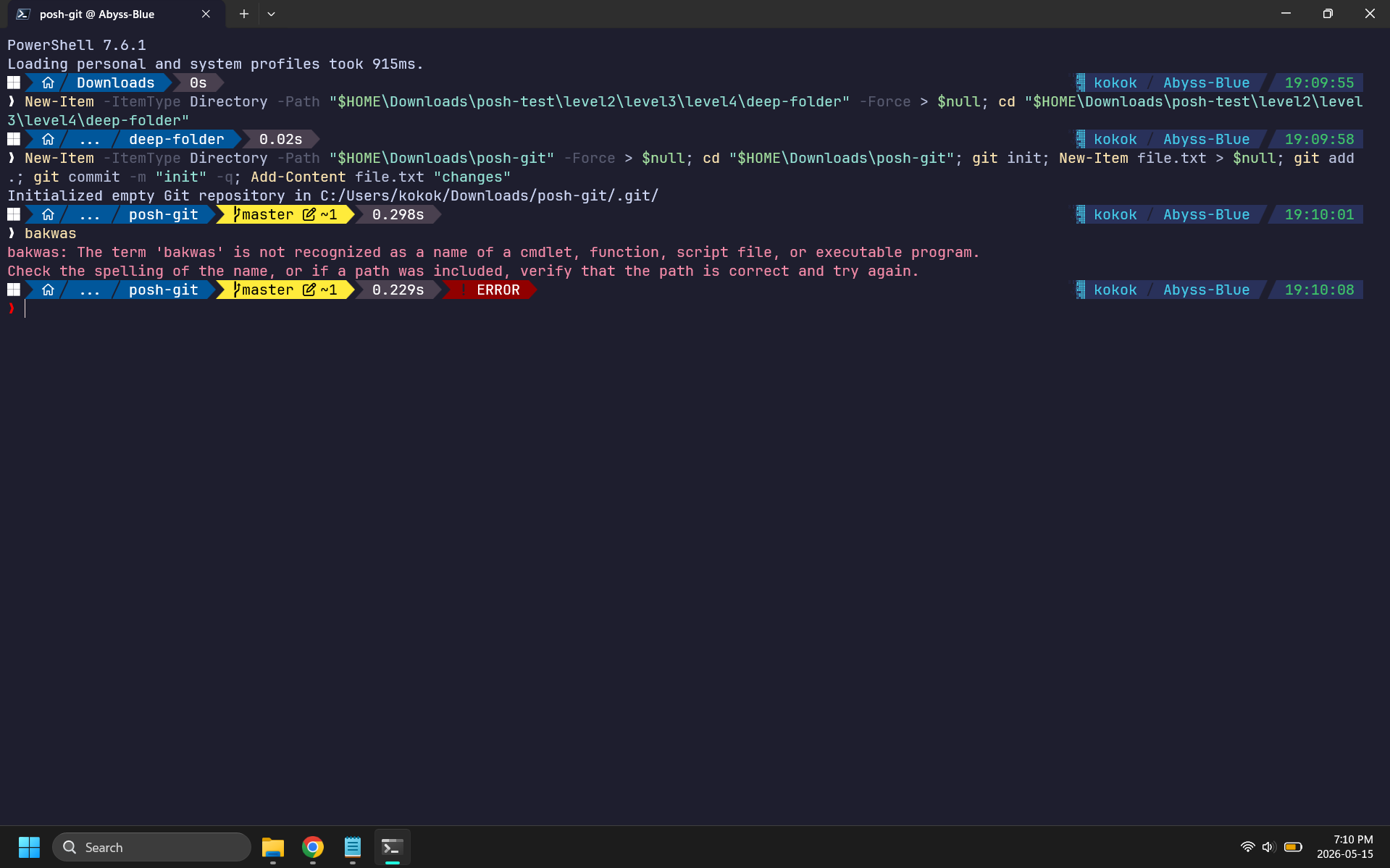
Tokyo
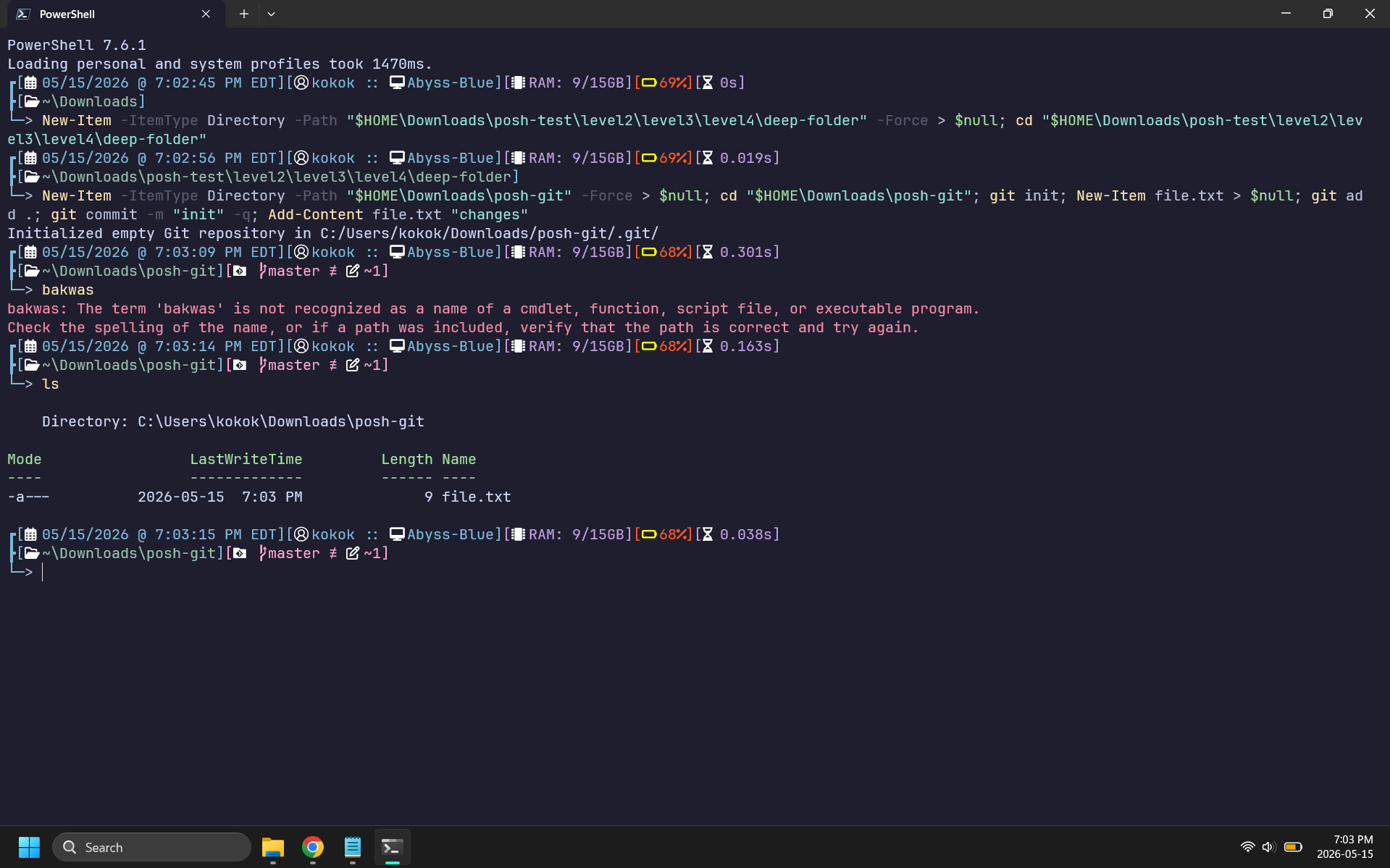
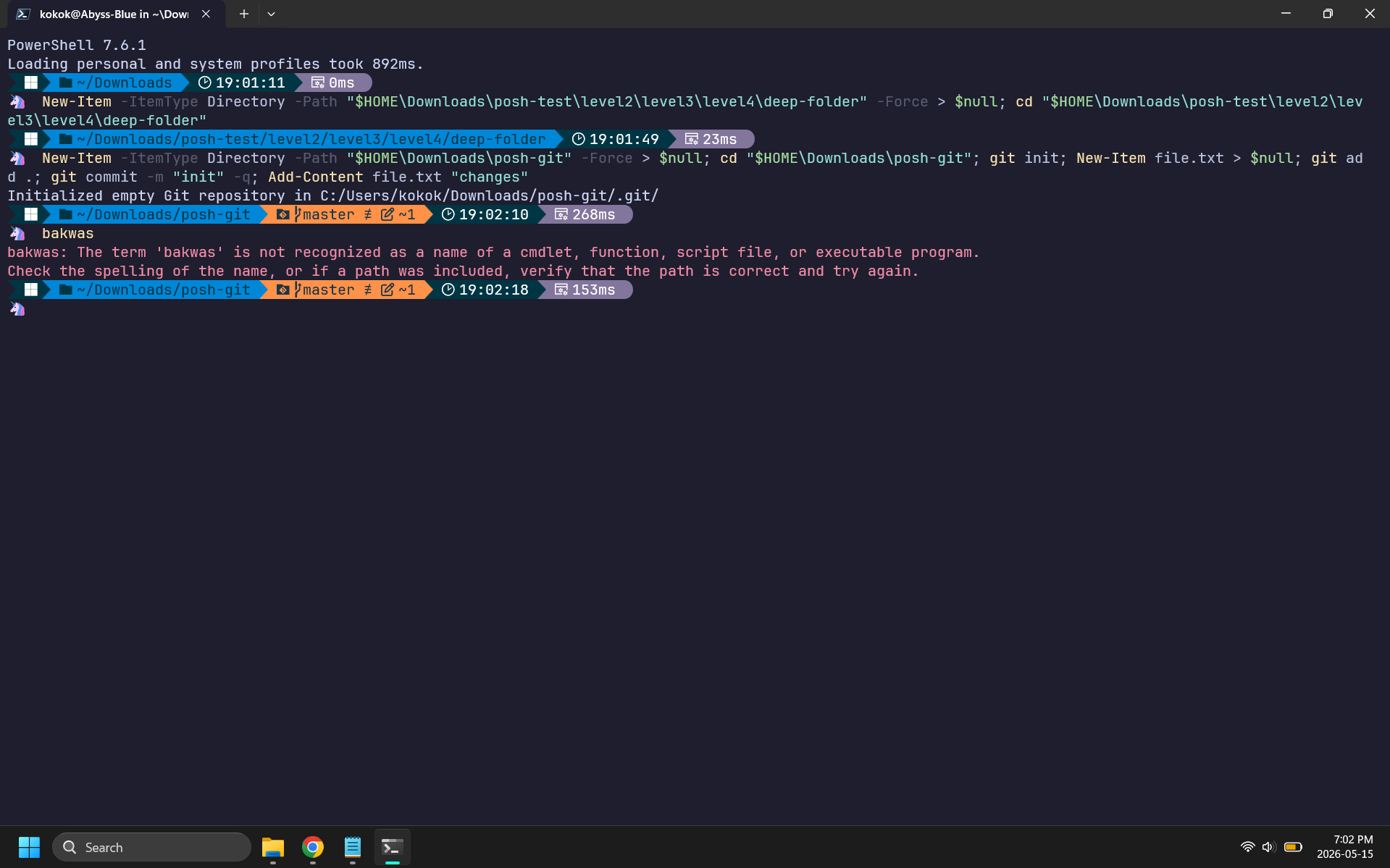
Unicorn
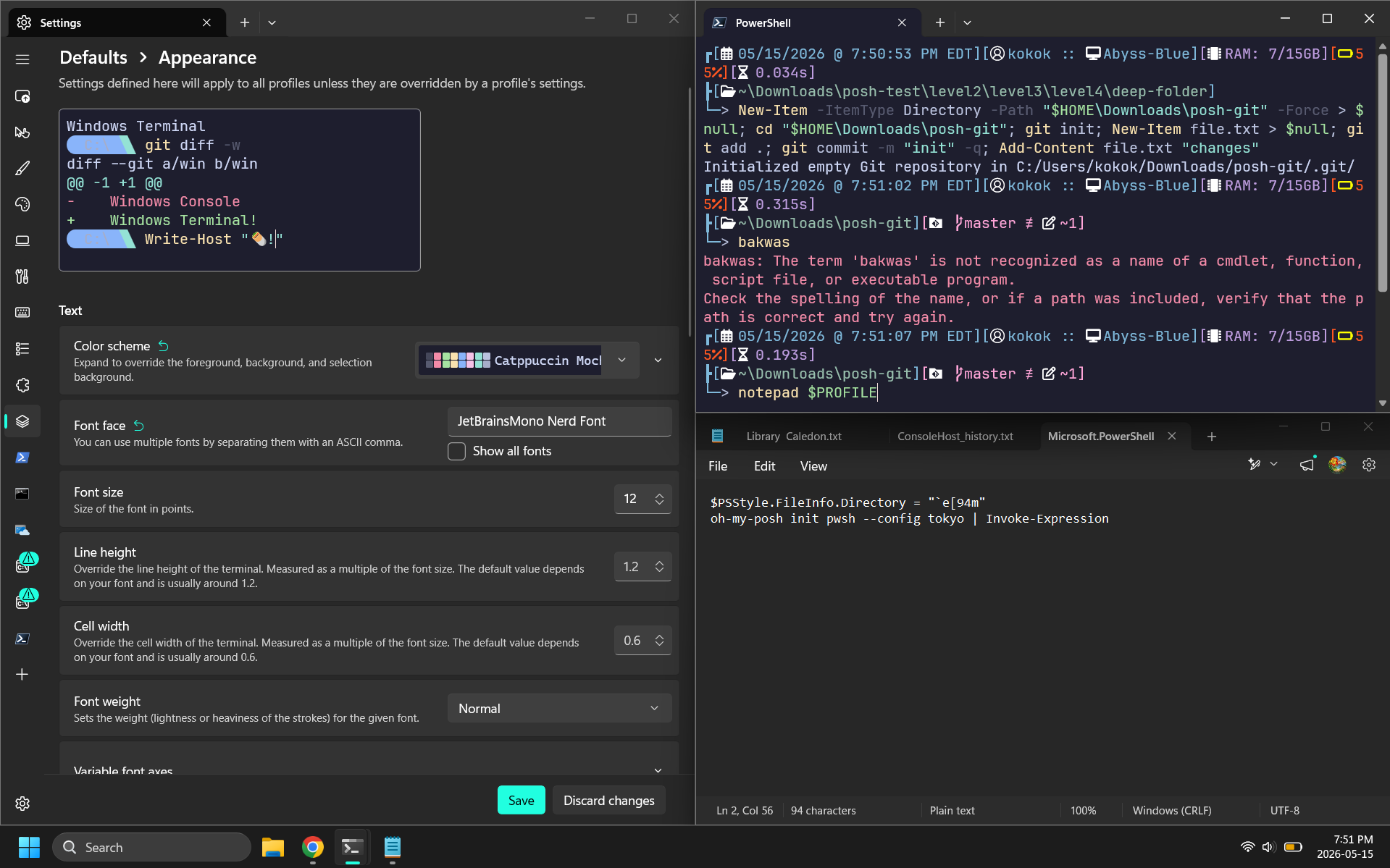
⚙️ Terminal Configuration
The following screenshot contains additional Windows Terminal appearance and configuration settings.
Terminal Configuration
🖥️ PowerShell Profile Relocation
Problem
PowerShell hardcodes $PROFILE to:
~\OneDrive\Documents\PowerShell\Microsoft.PowerShell_profile.ps1
This places configuration files inside the Documents folder, which may not align with a cleaner directory organization strategy.
Solution
Move the actual profile script into AppData and leave a symbolic link at the original location so PowerShell continues to function normally.
Benefits:
- Keeps Documents cleaner
- Maintains PowerShell compatibility
- Allows profile management from a dedicated configuration location
Step 1 — Create a New Home for the Profile
New-Item -ItemType Directory -Path "$HOME\AppData\Local\PowerShell" -Force
Step 2 — Move the Existing Profile
Move-Item $PROFILE "$HOME\AppData\Local\PowerShell\profile.ps1"
Step 3 — Create a Symbolic Link
New-Item -ItemType SymbolicLink `
    -Path $PROFILE `
    -Target "$HOME\AppData\Local\PowerShell\profile.ps1"
Step 4 — Hide the PowerShell Folder
attrib +h +s "$HOME\OneDrive\Documents\PowerShell"
The combination of:
+h= Hidden+s= System
prevents the folder from appearing in File Explorer under typical settings.
Do not delete
AppData\Local\PowerShell— the actual profile lives there. The Documents folder only holds the symlink pointing to it.
🔧 Useful Commands
| Command | Purpose |
|---|---|
ls -Force | Show hidden and system files/folders |
Get-Item $PROFILE | Select-Object FullName, LinkType, Target | Verify symlink target |
attrib +h +s <path> | Hide folder from File Explorer |
attrib -h -s <path> | Unhide folder |
(Get-Item <path>).Attributes += 'Hidden' | Mark item as hidden via PowerShell |
📁 Final Structure
AppData
└── Local
    └── PowerShell
        └── profile.ps1

Documents
└── PowerShell
    └── Microsoft.PowerShell_profile.ps1 -> symlink